Getting Started
Local Clock Manager Setup
First, you'll be asked which style of clock you want to add (see screenshot
below). When you make your choice, click "Next" and follow the instructions on
the screens that appear.
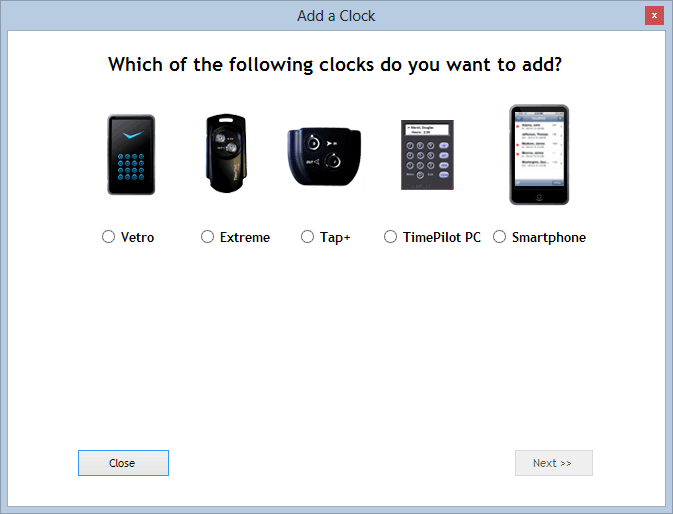
- Vetro: You have two options when you pick this clock:
- Adding the clock via the USB drive: This choice guides you through
naming the clock and setting a six-digit password, loading them onto the
USB drive and transferring them to the clock.
- Adding the clock via a network: This choice is available to those
who have installed their TimePilot database and the TimePilot Service
software on the same computer (server or PC) and have their Vetro clocks
attached to the same network. Please click the "Using the Network to set
up Vetro clocks" note on the setup screen for details.
- Extreme: This choice guides you through naming the clock and setting
the time and date, loading them onto the USB drive and transferring them to
the clock.
- Tap+: Because the Tap clock can be used on any computer in
your network—and might be moved frequently from computer to computer—there's an extra step to setting up a Tap clock:
You'll need to install a small program,
Tap Manager, on any computer that
might be used with a Tap. Click the "Next " button for complete
instructions.
Tap Manager is found on your TimePilot software
CD. Place the CD in each computer's CD drive, and when the software starts,
choose "Install TimePilot software," then "TimePilot Installation Menu,"
then "TimePilot Tap Manager." Your Tap clocks will appear in Clock Manager
when you plug your Tap clock into a USB port of a computer on your network
that's running Tap Manager.
- TimePilot PC: Much like TimePilot Tap,
you'll need to install TimePilot PC on each computer in your network where
employees will clock in and out using the software. The Clock Manager will
automatically "see" each installation of TimePilot PC on your network. Click
the "Next " button for complete instructions.
- Smartphone: TimePilot has Apps for the iPhone and
Android phones that enable individual employees or groups of employees to
clock in and out with their cell phones. Once the smartphones are set up
with TimePilot, they will appear in Clock Manager. Click the Next button for
details and a download link.