TimePilot Tap
Using TimePilot Tap as a Desktop Timeclock
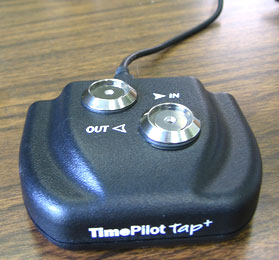 We intended Tap to be the ultimate portable timeclock, and envisioned
companies using two or three or more Tap clocks throughout their facility as
well as by employees on the road and in the field.
We intended Tap to be the ultimate portable timeclock, and envisioned
companies using two or three or more Tap clocks throughout their facility as
well as by employees on the road and in the field.
But some customers have been using their Tap clocks in a very different way.
Instead of carrying them far and wide, they’re leaving their Tap clocks on a
desk or a counter, cabled to their PC. Used this way, the Tap becomes a very
simple, easy-to-use timeclock, both for employees and for supervisors.
Here are some of the benefits to using the Tap in this way:
- Employees can clock in and out whether the PC is running or not. If the PC is
booted up and the Tap Manager
software* is running, the clock gets power through the USB Cable
and immediately transfers
clock-ins and clock-outs to the
TimePilot database. If the Tap
Manager isn't running, the clock’s internal battery takes over and
the clock holds the clock-ins and clock-outs in its memory
until the Tap Manager software
is started again.
When that happens, the data is
transferred automatically. The
battery in Tap can last for up to a year without a recharge. (How do you recharge it? Simply plug the USB cable into the clock and a USB port on your PC.)
- Clock ins and clock-outs are transferred instantly to the PC (if
Tap Manager is running), so supervisors can see immediately who’s at work and who’s not.
- Other desktop timeclocks are heavy and have a large "footprint." The Tap is just 5 ounces and a little larger than a deck of cards. In other words, it's easy to slide out of the way if it starts making a nuisance of itself.
- When you add a new
employee or an
employee leaves your company, there’s no need for a supervisor to transfer those changes to the clock—it's done automatically.
*Tap Manager is a small software
program that you probably installed
when you set up your Tap
clock in the TimePilot software.
(If you didn't install it, you can
find it on your software CD.)