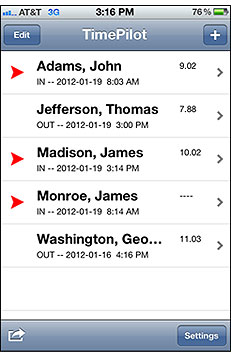
The App's main page shows the list of employees that have been set up on the phone. Just as in TimePilot Central, red arrows mean the employee is clocked in. The date and time of the employee's most recent clock-in or -out appears under his or her name, and their accumulated hours (the time between clock-ins and clock-outs) is shown to the right of the employee's name.
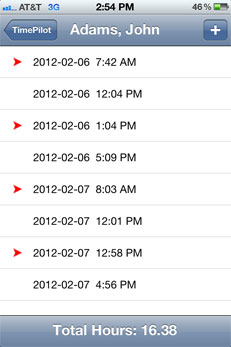
Tapping an employee's name brings up just that person's transactions. At the bottom of the screen is the total of hours worked. Want to delete a transaction? Swipe the offending transaction from left to right or right to left, then tap the "Delete" button that appears.
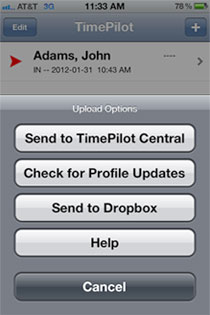
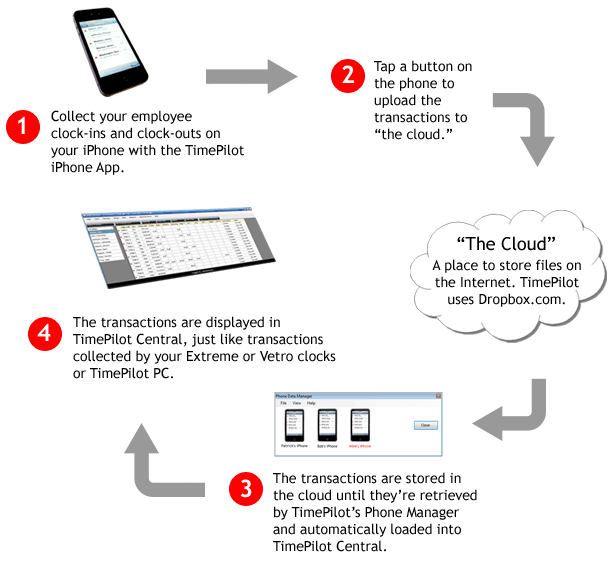
Ready to send your transactions to TimePilot Central? Just tap the icon in the lower left corner of the main screen and then tap "Send to TimePilot Central." The phone uses either a cellular data connection or a Wi-Fi connection to send the files to your Dropbox account, and from there to TimePilot Central on your PC.