TimePilot iPhone App
Moving Profiles from TimePilot Central to an iPhone
You can send your employee profiles from TimePilot Central straight to an iPhone,
so you can avoid having to set up each profile individually on each
iPhone. Here's how:
-
 Start
TimePilot Central. Click the "File" menu, then "Retrieve
Data from Phones" to start the TimePilot Clock Manager.
Start
TimePilot Central. Click the "File" menu, then "Retrieve
Data from Phones" to start the TimePilot Clock Manager.
- Right-click the image of the iPhone to which you want to
send your profiles. Choose "Send Profiles to Phone" from the
pop-up menu that appears.
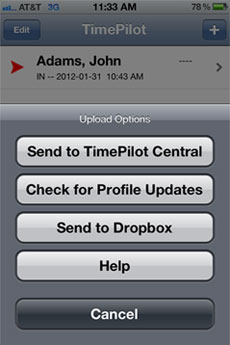
- On the iPhone, tap the button in the lower left corner
of the Main View (Item 4 in the diagram in the section above
titled "Using the app").
- Tap the "Check for Profile Updates" button. All of the
employee profiles you have in TimePilot Central will be
copied to the iPhone. Any profiles that are transferred that
you don't want can be deleted from the iPhone. See "Deleting
Profiles and Transactions," above, for instructions.
- The final step is to return to the TimePilot Clock
Manager. You'll see that the name of the iPhone to which you
sent the profiles is now in red, meaning there are
transactions to download. Right-click the iPhone and choose
"Retrieve Data from Phones." Even though no new transactions
will be downloaded to TimePilot Central, this action will
complete process of the copying the profiles to the iPhone
from TimePilot Central.