TimePilot iPhone App
Setting Up the App
-
After you install the
app, you’ll need
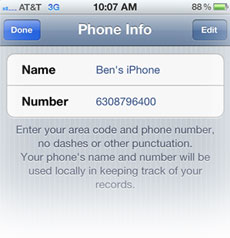
to give your phone a name and enter its phone number to set
up the app. This is required whether or not you will be
using the app with TimePilot Central software.
If you
use the software, the phone’s name and number will be used
to identify clock-ins and clock-outs in the TimePilot
Central software.
The name should be something like "Acme iPhone 1" or "John's
iPhone."
The phone number should be the iPhone's 10-digit number
(including area code) without dashes, spaces or other
punctuation. If you’re using the app on an iPod Touch or an
iPad, just enter a unique 10-digit number that can be used
to identify the device. The phone name and number need to be
entered only once.
-
After completing this initial setup, you're ready to
begin adding Employee Profiles. These are the employees whose data will be collected on the phone. Each
profile has a name and a four-digit personal identification
number (PIN).
-
You can do this two ways:
At the iPhone or at TimePilot Central. If you have multiple
iPhones and/or multiple employees, it's more efficient to do
this in TimePilot Central (see the second method):
-
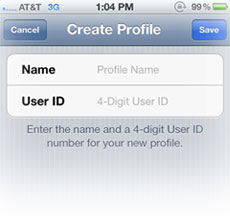 On each iPhone: To add a new employee profile, tap the + button in the
upper right-hand corner of the App's main view. Enter the
name and PIN for the profile and tap "Save." Important:
Make sure the name you enter exactly matches the name
in the TimePilot Central software and the PIN in the iPhone
App matches the employee’s User ID in his or her profile. Need
to double-check the name or ID? Start TimePilot Central
and double-click the appropriate name in the list of
employees on the left side of the screen.
On each iPhone: To add a new employee profile, tap the + button in the
upper right-hand corner of the App's main view. Enter the
name and PIN for the profile and tap "Save." Important:
Make sure the name you enter exactly matches the name
in the TimePilot Central software and the PIN in the iPhone
App matches the employee’s User ID in his or her profile. Need
to double-check the name or ID? Start TimePilot Central
and double-click the appropriate name in the list of
employees on the left side of the screen.
- On all your iPhones with the App at one time:
Click here
for instructions.
 Setting up the app